 E-mail

Use Cases
|
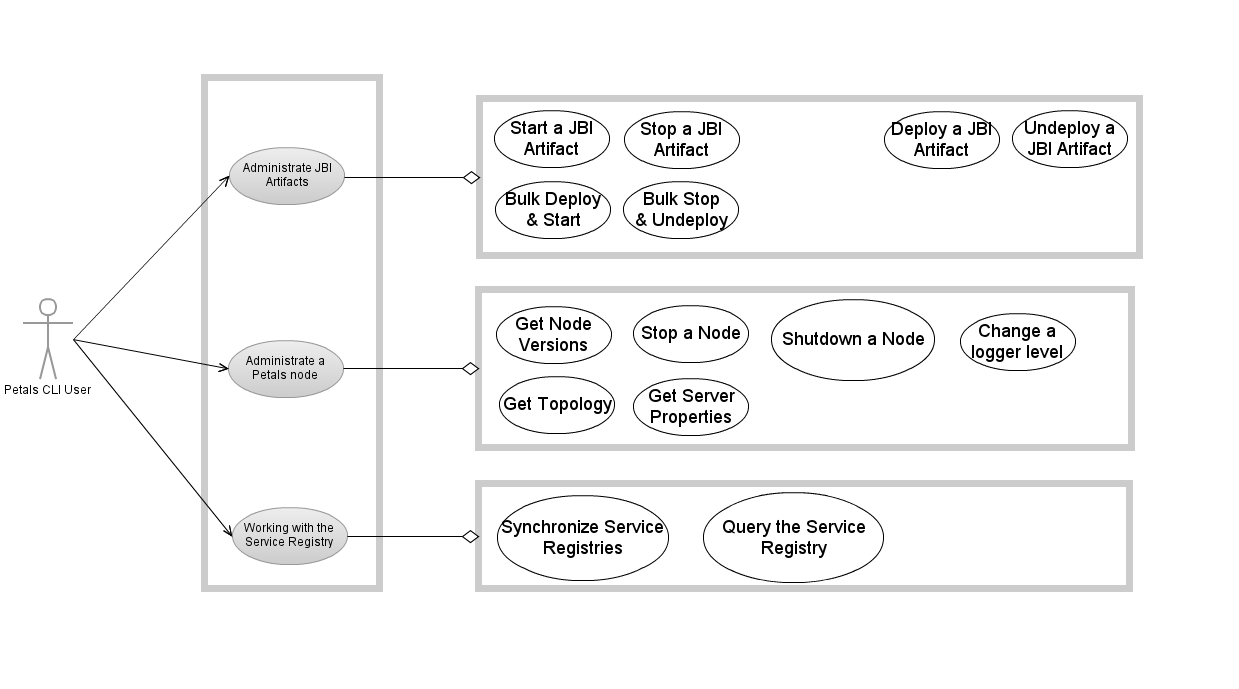
Usage of Petals CLI
usage: Petals JMX Command Line Interface

[-d] [-y] [-h <host>] [-n <port>] [-u <user>] [-p <password>] [-H | -V | [--file ] <filename> | -c -- <command> <command-args> | -C]

-c,--command <command> Execute a command given on the command line.
-C,--console Enable the mode 'console'.
-d,--debug Print stack trace and debugging informations
--file <filename> Enable the script file execution. If filename is '-', commands are read from the stdin.
-H,--help Print this help message and exit.
-h,--host <host> remote petals ESB host name.
-n,--port <port> port number.
-p,--password <password> password.
-u,--user <user> username.
-V,--version Print the version number and exit.

To get help on a command, use the command 'help' on command-line: petals-cli.sh -c -- help <command>

Available commands:
- deploy: Deploy and start a JBI artifact in petals container.
- start: Start a JBI artifact or the container.
- stop: Stop a JBI artifact or the container.
- undeploy: Stop and uninstall or undeploy JBI artifacts.
- exit: Exit this shell.
- help: Display this help message or help for a specific command.
- list: List JBI artifacts name and current status.
- registry-sync: Force a registry synchronization
- registry-list: List the entries of the registry.
- version: Print version informations about petals container.
- show: Print informations about a JBI artifact.
- load: Load properties from files.
- print: Print a message.
- pwd: Print the working directory.
- set: Assign a value to the system property named key.

Which evolution would you like on Petals? Share it! http://www.petalslink.com/feedback
 | Options of Petals CLI are POSIX.1-2008 or IEEE Std 1003.1 compliant.
Petals CLI: the BasisInstalling Petals-CLIMake sure you have downloaded petals-cli.x.x.zip. Petals CLI capabilities about script and shell usagesInteractive consoleLaunching Petals CLI with the following command line starts an interactive console with a prompt where the user can enter commands.
> ./petals-cli.sh -C

Type 'help' for help.
------------------------------------------------------------------------------
petals-cli>
On Windows, to be able to launch Petals CLI by a double-click, this command is wrapped by another script: petals-cli-console.bat. Execution of a Petals CLI command directly on the command lineLaunching Petals CLI with the following command line executes the command specified on the command line. > ./petals-cli.sh -c -- <command> <command-args> Execution of a Petals script fileLaunching Petals CLI with the following command line executes the commands from the specified Petals script. > ./petals-cli.sh <filename> > ./petals-cli.sh --file <filename>
Execution of an inlined Petals scriptLaunching Petals CLI with the following command line executes commands provided through the standard input ("stdin"). > cat <filename> | ./petals-cli.sh - > cat <filename> | ./petals-cli.sh --file - > ./petals-cli.sh - << EOF <command1> <command1-args> <command2> <command2-args> EOF > ./petals-cli.sh --file - << EOF <command1> <command1-args> <command2> <command2-args> EOF Getting helpGetting help on command line options and argumentsThe help on command line options and arguments is available through the '-H' option. A text containing options, arguments and available commands is displayed according to the usage defined above. > ./petals-cli.sh -H Getting help on commands from the command lineThe help on a command is available by using the command 'help'. A usage and a description of the command is displayed: > ./petals-cli.sh -c -- help <command> usage: <command> <command-arguments> <command description> > where:
Getting help on available commands and on a command in interactive modeThe list of available commands is available by using the command 'help' without argument. > ./petals-cli.sh -C Type 'help' for help. ------------------------------------------------------------------------------ petals-cli> help Available commands: deploy Deploy and start a JBI artifact in petals container. exit Exit this shell. help Display this help message or help for a specific command. ... For help on a specific command type: help <command> petals-cli> help <command> usage: <command> <command-arguments> <command description> petals-cli> where:
Getting the version of Petals CLITo get the version of Petals CLI, the version of the JVM running Petals CLI, and its operating system, use the '-V' option: > ./petals-cli.sh -V Petals JMX Command Line Interface 1.1.0-SNAPSHOT Java(TM) SE Runtime Environment 1.6.0_26-b03 Linux 3.0.0-16-generic-pae Return codes of Petals CLIReturn code on error parsing mode optionsIf Petals CLI is not able to determine the mode (interactive, scripting, executable or redirection) to use from arguments, the return code will be 1. Return code of Petals CLI launched in interactive modePetals CLI launched in interactive mode will exist always with the return code 0, even if error occurs executing a command.
Return codes of Petals CLI launched in executable modeReturn code on parsing error of the command argumentsWhen there is an no error about options and arguments of the command, the return code of Petals CLI is 1. Return code on command executionWhen there is an no error about the command execution, the command is interrupted and the return code of Petals CLI is 2. Return code on successful command executionWhen there is no error about options, arguments and execution of a the command, the return code of Petals CLI is the return code of the command Return code of commandsAll commands return the return code 0 when the execution succeeds, and 1 when the execution fails. Except the command 'system' that returns the return code of the system command invoked. Return codes of Petals CLI launched in scripting modesOptions and arguments parsing of commandWhen using the script mode or inlined mode, parsing errors (invalid options and/or arguments) result in an interruption of Petals CLI. Error management of a command read from stdin or a fileIf an error occurs during the execution of a flow of commands:
Exit from the Console modeTo exit the console mode, use the 'exit' command. > ./petals-cli.sh -C Type 'help' for help. ------------------------------------------------------------------------------ petals-cli> exit > echo $? 0 > ./petals-cli.sh -C Type 'help' for help. ------------------------------------------------------------------------------ petals-cli> exit 1 > echo $? 1 Petals CLI PreferencesIt is possible to define preferences in Petals CLI. However, it is possible to move this file somewhere else thanks to an environment variable. This file contains a set of keys in several sections:
Connection to a Petals nodeConnection options from the command lineAll the required parameters for a JMX connection must be configurable on the command line as options: > ./petals-cli.sh -h <host> -n <port> -u <user> -p <password> -c -- <command> > ./petals-cli.sh -h <host> -n <port> -u <user> -p <password> -C petals-cli@<host1>:<port1>>
> ./petals-cli.sh -a <alias> -c -- <command>
> ./petals-cli.sh -a <alias> -C
petals-cli@<host1>:<port1>>
Interacting with several Petals nodes without exiting Petals CLIIn interactive mode or script mode, we should be able to close a connection and open another one without leaving Petals CLI. This is achieved with the 'connect' and 'disconnect' commands. If no argument is set on the 'connect' command, default values are used. These default values are specified in the preferences file. If a connection already exists, the 'connect' command will realize a disconnection before to establish the new connection. > ./petals-cli.sh -C Type 'help' for help. ------------------------------------------------------------------------------ petals-cli> connect -h <host1> -n <port1> -u <user1> -p <password1> Connected on <host1>:<port1> with '<user1>' petals-cli@<host1>:<port1>> disconnect petals-cli> connect -a <alias> Connected on <host1>:<port1> with '<user1>' petals-cli@<host1>:<port1>> disconnect petals-cli> connect -h <host2> -n <port2> -u <user2> -p <password2> Connected on <host2>:<port2> with '<user2>' petals-cli@<host2>:<port2>> connect petals-cli@<host2>:<port2>> Would you like to connect to <default-user>:*****@<default-host>:<default-port>? (y/n) y petals-cli@<default-host>:<default-port>> Default connectionBy default (if no argument or option is set). > ./petals-cli.sh -C Type 'help' for help. ------------------------------------------------------------------------------ petals-cli> connect petals-cli> Would you like to connect to <default-user>:*****@<default-host>:<default-port>? (y/n) y petals-cli@<default-host>:<default-port>> The confirmation can be skipped by adding the 'yes' argument to the command. > ./petals-cli.sh -C Type 'help' for help. ------------------------------------------------------------------------------ petals-cli> connect -y petals-cli@<default-host>:<default-port>> In command line mode, if no argument or option is set, a connection is established with the values defined in the preferences file. > ./petals-cli.sh -c -- stop |

This is necessary to easily stop a local container
| In script mode, the connection is established with the values defined in the preferences file.
> ./petals-cli.sh - << EOF
connect
EOF
If the preferences file does not exist and that connect was invoked without an argument, the command returns the error code 2. SecurityFor security reasons, a Petals CLI user may decide that there should be no default connection. > ./petals-cli.sh -C Type 'help' for help. ------------------------------------------------------------------------------ petals-cli> connect No default connection is available. Use 'help connect' for more information.
> ./petals-cli.sh -C

Type 'help' for help.
------------------------------------------------------------------------------
petals-cli> connect
petals-cli> Would you like to connect to <default-host>:<-default-port>? (y/n)
y
petals-cli> Username: wrong-username
petals-cli> Password: right-pwd
Invalid credentials.
petals-cli> Retry? (y/n)
y

petals-cli> Username: right-username
petals-cli> Password: wrong-pwd
Invalid credentials.
petals-cli> Retry? (y/n)
y

petals-cli> Username: right-username
petals-cli> Password: right-pwd
petals-cli@<default-host>:<-default-port>>
Error Messages |
Error messages should be written in active form.
Negative forms should be avoided.
| The preferences file does not exist. The connect command results in the following error message.
Administration CommandsWorking with JBI artifactsDeploying and Starting an Artifact at oncePetals CLI is able to deploy and start a JBI artifact without distinction between shared-library, component and service assembly using the following command: deploy -u <artifact-file> [-f,--file <configuration-file> | -D <configuration-properties>] where:
|
Auto-completion is available on artifacts identifiers and artifact file names.
| If the artifact to deploy is a component and its component installer is already loaded (the component is not installed), then the command 'deploy' will unload the component installer, reload a new one and continue the lifecycle (configuration, installation and start).
Deployment of an Artifact located in a Maven repository
Petals CLI is able to deploy and start a JBI artifact located into a Maven repository by using the following command: deploy <maven-artifact> [<configuration-file> | <configuration-properties>] where:
Same remarks about lifecycle of the deployment from an URL are applicable for the deployment from a Maven artifact. Bulk Deployment and StartTo deploy and start several artifacts in one command, just put them in a local directory and execute the command 'deploy': deploy -b,--bulk <url|file> > ./petals-cli.sh -y - << EOF deploy -b file:///tmp EOF > ./petals-cli.sh -C Type 'help' for help. ------------------------------------------------------------------------------ petals-cli> deploy -b /tmp If the argument <artifact-file> of the 'deploy' command is a local directory, all artifacts of the directory are deployed.
Starting an ArtifactAn artifact can be started by using the 'start-artifact' command: > ./petals-cli.sh -c -- start-artifact [ -u <artifact-file> | -a <artifact-id> [<artifact-type>] ] where:
|
Auto-completion is available on artifacts IDs and artifact file names.
| Stopping an artifactAn artifact can be stopped by using the command 'stop-artifact': > ./petals-cli.sh -c -- stop-artifact [ -u <artifact-file> | -a <artifact-id> [<artifact-type>] ] where:
|
Auto-completion is available on artifacts IDs and artifact file names.
| Undeploying and Stopping an Artifact at oncePetals CLI is able to stop and uninstall/undeploy a JBI artifact without distinction between shared-library, component and service assembly using the following command: undeploy [ -u <artifact-file> | -a <artifact-id> [<artifact-type>] ] where:
|
Auto-completion is available on artifacts IDs and artifact file names.
| Bulk Undeployment and StopTo undeploy several artifacts in one command, just put them in a local directory and execute the 'undeploy' command:
> ./petals-cli.sh -y - << EOF
undeploy -b
EOF
> ./petals-cli.sh -C

Type 'help' for help.
------------------------------------------------------------------------------
petals-cli> undeploy -b
Showing installed JBI artifactsAll the installed JBI artefacts can be listed using the command 'list [-p <artifact-pattern> ] [-t artifact-type]': > ./petals-cli.sh -c -- list petals-sl-mysql Installed SL petals-bc-soap Loaded BC petals-se-bpel Started SE soap-consume-provide Started SA su-SOAP-EchoService-consume SU su-SOAP-EchoService-provide SU where:
The returned list is ordered:
For each artifact, the command displays (caution to the padding):
|
As the SU lifecycke can't be modified through the JMX API, there is no interest to display the SU status (it's the same as the status of its SA).
| Getting information about an ArtifactInformation about a JBI artifact can be got with the 'show' command: > ./petals-cli.sh -c -- show [-e] [ -u <artifact-file> | -a <artifact-id> [<artifact-type>] ] where:
The '-e' option displays extended information. Displayed information includes:
|
Auto-completion is available on artifacts IDs and artifact file names.
| Interrupting a flow of commandsA flow of commands can be interrupted by using the 'exit' command. If a number is set as argument, it is used as return code. The argument 'lastErrorCode' is used as return code value of the last executed command. Otherwise, 0 is returned to the shell. > ./petals-cli.sh -y - << EOF deploy /tmp/my-artifact.zip exit lastErrorCode EOF Ending a flow of commandsWhen the end of a flow of commands is reached, if the last command is not 'exit', the 'exit lastErrorCode' command is implicitly executed. > ./petals-cli.sh -y - << EOF deploy /tmp/my-artifact.zip EOF echo $? 0 Working with the ContainerGetting the versions related to a Petals nodeTo get the version of a Petals node, the version of the JVM running Petals node, and its operating system, use the 'version' command: > ./petals-cli.sh -c -- version Petals JBI Container 3.1.4-SNAPSHOT Java(TM) SE Runtime Environment 1.6.0_26-b03 Linux 3.0.0-16-generic-pae Stopping the containerThe container can be stopped by using the 'stop' command with the argument 'container': > ./petals-cli.sh -c -- stop container Shutdowning the containerThe container can be shutdowned by using the command 'stop' with the argument 'container' and the parameter '--shutdown'. > ./petals-cli.sh -c -- stop container --shutdown Are you sure you want to shutdown the container? (y/n) A confirmation is expected, except if the 'yes' flag is set on the command line. A confirmation message is displayed in the console mode, except if the 'yes' flag is set on the command line. Getting the topologyWhen connected to a container, it is possible to get information about the topology this node is part of. petals-cli@host:port> topology-list Domain: Domain 1 Subdomain: SubDomain 1 * Container: Node1 ** information * Container: Node2 ** information Subdomain: SubDomain 2 ...
Getting the server propertiesWhen connected to a container, it is possible to get all the values defined in its server.properties file. petals-cli@host:port> properties-list Key1: value1 Key2: value2 ... where "keyN" and "valueN" are the keys and values defined in the server.properties file of this container. Changing logger levelsOn a container, it is possible to change the level of a logger. petals-cli@host:port> logger-set -n <logger-name> -l <level> The log level was succesfully changed. In case of error, the error message is "The log level could not be changed.", followed by a detailed message (e.g. "FINER is not a valid log level").
petals-cli@host:port> loggers
logger1
logger2
...
petals-cli@host:port> loggers -p <regular expression> logger1 logger2 ... |
Auto-completion is available on logger names and log levels.
|
Working with the Service Registry
 | Qualified names, like service and interface names, are written as follows:{namespace-uri}local-part. |
Synchronizing the registry
A synchronization of the registry on a specific node can be done with the 'registry-sync' command:
> registry-sync
Synchronization is done
A synchronization of all the topology nodes can be done with the same command and the '-a' argument.
> registry-sync -a
<Progress Report (as a percentage)>
Synchronization is done
| Global synchronization is done in two passes:
|
The response message is displayed in console mode only.
Showing the registry's full content
The full content of the registry can be dumped by using the 'registry-list' command:
petals-cli> registry-list
Endpoints:
<endpoint-name-1>: <endpoint-1-characteristics>
<endpoint-name-2>: <endpoint-2-characteristics>
Services:
<service-name-1>:
<endpoints-list>
<service-name-2>:
<endpoints-list>
Interfaces:
<interface-name-1>:
<endpoints-list>
<interface-name-2>:
<endpoints-list>
where:
- <endpoint-name-x> is an endpoint name.
- <endpoint-x-characteristics> is the attributes of the endpoint, separated by comma: container identifier, component identifier, endpoint type.
- <service-name-x> is a service name.
- <interface-name-x> is an interface name.
- <endpoints-list> is the list of endpoint name implementing the interface or service.
Filtering the registry's full content
The content of the registry can be dumped by using the 'registry-list' command.
It is however possible to filter the dumped result.
petals-cli> registry-list \[-e <endpoint-name-regexp>\] \[-s <service-name-regexp>\] \[-i <interface-name-regexp>\]
Endpoints:
<endpoint-name>: <endpoint-characteristics>
Services:
<service-name-1>:
<endpoint-name>
<service-name-2>:
<endpoint-name>
Interfaces:
<interface-name-1>:
<endpoint-name>
<interface-name-2>:
<endpoint-name>
where:
- <endpoint-name-regexp> is a regular expression used as filter on the full end-point name.
- <service-name-regexp> is a regular expression used as filter on the full service name.
- <interface-name-regexp> is a regular expression used as filter on the full interface name.
In the result:
- <endpoint-name> is the endpoint name.
- <endpoint-characteristics> is the attributes of the endpoint, separated by comma: container identifier, component identifier, endpoint type.
- <service-name-x> is the services associated to the specified endpoint.
- <interface-name-x> is the interface names associated with the specified endpoint.
The parameter order (endpoint, service, interface) does not matter.
All are optional. If none is specified, the entire regitry content is dumped.
System Commands
Petals CLI can directly execute system commands.
To achieve it, the system command is an argument of the 'system' command.
petals-cli> system <system-command>
As an example,
petals-cli> system pwd
displays the directory in which Petals CLI runs.
The return code of the wrapping command is the return code of the system command.
Known Problems
Error about missing options
For commands requiring at least one option, an error can occur if the operand flag ('--') is missing:
> ./petals-cli.sh -h localhost -n 7700 -u petals -p petals -c -- deploy -u file:///.../my-archive.zip
ERROR on command 'deploy': Missing option(s):b, u
usage: deploy [-b <url> | -u <url>] [-D
       <property1=value1,property2=value2> | -f <configuration-file>]
This is due to the option overriding: the command deploy and Petals CLI have the same option: u. Both -u are processed by Petals CLI option parsing. Just add '-' before the command to exclude the second 'u' of the Petals CLI option parsing. So it will be available for the command option parsing.