 E-mail
In this part of the documentation, we will see how to import services into Petals Master's registry, how to search services, add organization's and person's roles on services and endpoints .
6.1. How to import a service
Importing a service into Petals Master's registry is really simple. Go to the "Import service" page. You will see this : You have two tabs. The first tab "WSDL URL Import" :

You have only to copy/paste the URL of the service's WSDL into the field, then validate. 
The second tab "WSDL File Import" : 
Here, browse your files and choose the service's WSDL.
You will be forwarded to a new screen, displaying the service(s) described by the uploaded WSDL and then registered into Petals Master. 
To display service's information (like the roles of the actors (provider, consumer, developer, user, etc.), categorization, brief description of the aim of the service, etc.), click on the service's name : you will arrive on the View/Edit form of the service.
 | Caution UI import functionalities allows import of WSDL with absolute imports or without imports. Only Petals Master Web Service API allows to import WSDL with relative imports. See Chapter 8, Petals Master Web Services APIs |
6.2. View service's information (purpose, endpoints, actors, etc.)
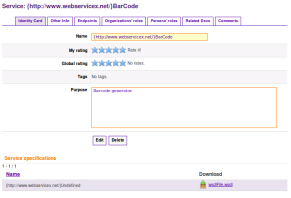
You have several tabs on this form. The first is the service's ID card. There, you can fill pieces of information about its purpose and other stuff (select the Edit button to edit/add data). You can rate the service by clicking the stars labeled as "My rating". The stars labeled as "Global rating" provide the average users rating.You could also tag services by clicking "New Tag" and providing a comma separated list of tags. If you want see the service's WSDL (the one you provide to register the current service) click on the link of the download column.
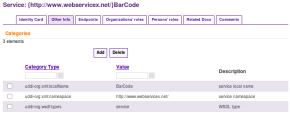
The second tab is named Other Info . If you click on it, you can see several categories defined for this service. You could add new categories by clicking Add button. To delete categories, just tick them in the list and click Delete button.
The third tab is named Endpoints. This tab displays all of the service's endpoints (as defined by the service's WSDL).
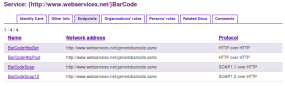
Like for services, view information about endpoints is possible. You just have to click on the endpoint's name and its information will be displayed. We will detail it later (see Section 6.3, "View service's endpoints").
The fourth tab is named Organization's roles. This tab displays the roles of the organizations. If the service is newly registered, there is no organization's role at all.
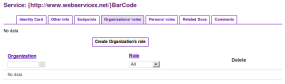
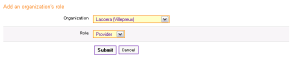
To add an organization's role, it is very simple. Click on the 'Create organization's role' button, then fill in the form :
choose an organization, then choose a role and validate.
Then, the organization's role appears into the array :
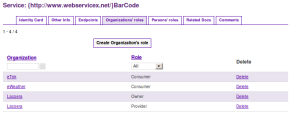
You can filter the array data by role. E.g. select the user role into the list :
and you obtain :
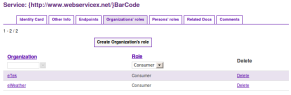
The fifth tab is named Person's roles. This tab displays the roles that persons of an organization have on the current service. If the service is newly registered, there is no person's role at all.
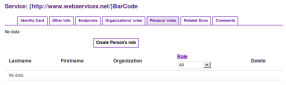
To add a person's role, it is very simple. Click on the 'Create person's role' button, then fill in the form : choose an organization, choose a person, then choose a role and validate.
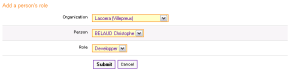
Then, the person's role appears into the array :
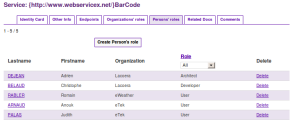
You can filter the array data by role. E.g. select the user role into the list :
and you obtain :
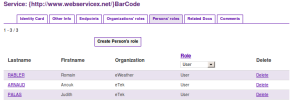
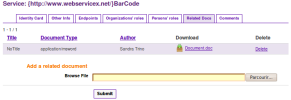
The sixth tab is named Related Docs. Here, you can attach documents relating to the service (authorized formats: .DOC,
.PDF, .XML, .HTML, .XLS, .PPT, .TXT, .RTF, .ODT, .ODS, .ODP).
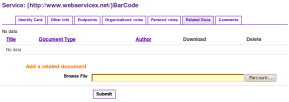
browse your files and choose your document.
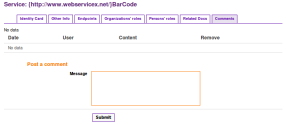
The seventh and last tab is named Comments. Here you can write comments for the service and see other user comments.
6.3. View service's endpoints
To view and edit information about an endpoint (like the roles of the actors (provider, consumer, developer, user, etc.)), click on the endpoint name (reachable via the 'Endpoints' tab of the Service View/Edit screen, as seen previously).
You will arrive on the endpoint's ID card. There, you can fill pieces of information about its purpose and other stuff. You can rate the endpoint (click the stars) and define tags (click New Tag). If you want to see the service's WSDL (which owns the current endpoint) click on download.
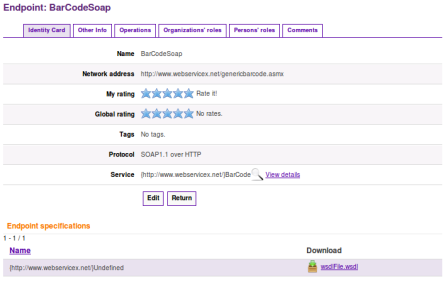
The second tab is named 'Other Info'. Here you can add categories for this endpoint :
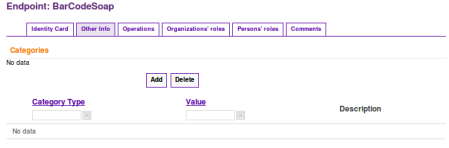
To add categories, click the button "add"
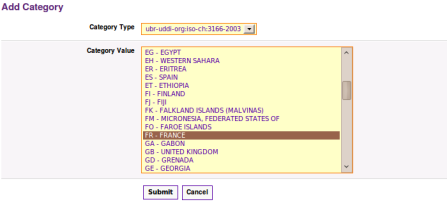
You obtain :
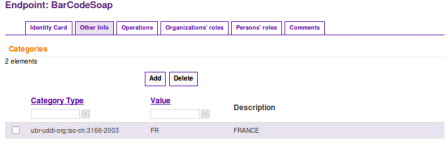
The third tab is called 'Operations'. This tab displays all the endpoint's available operations, as you can see below.

The fourth tab is named 'Organization's roles'. This tab displays the roles of the organizations. If the service (and so, the endpoint) is newly registered, there is no organization's role at all.
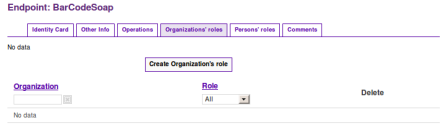
To add an organization's role, it is very simple. Click on the 'Create organization's role' button, then fill in the form :
choose an organization, then choose a role and validate.
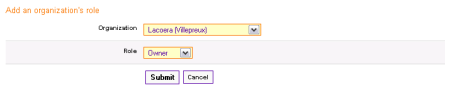
Then, the organization's role appears into the array :
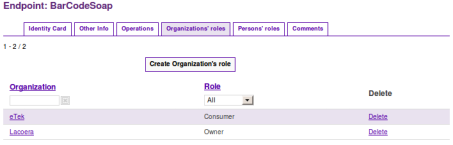
The fifth is named 'Person's roles'. This tab displays the roles that persons of an organization have on the current endpoint. If the service (and so, the endpoint) is newly registered, there is no person's role at all.
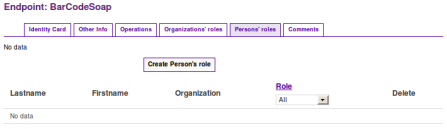
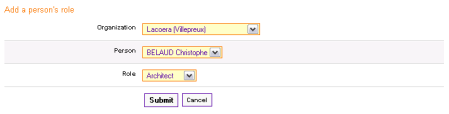
To add a person's role, it is very simple. Click on the 'Create person's role' button, then fill in the form : choose an organization, choose a person, then choose a role and validate.
Then, the person's role appears into the array :
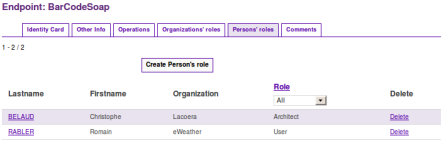
A role (organization role or person role) added to an endpoint is automaticaly added to the parent service.
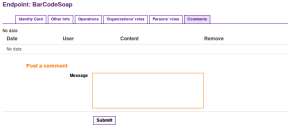
The sixth and last tab is named Comments. Here you can write comments for the endpoint and see other users commnets.
6.4. Search services
The use of the services search engine is similar to the one for organizations and persons. Enter your keywords and select fields on which the engine will search.
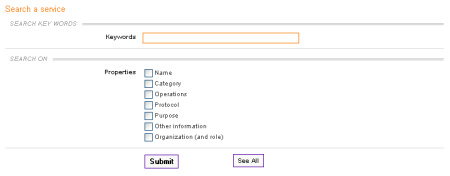

To display the list of all Services in Petals Master database push the "See All" button. The results are displayed as following :