E-mail
Monitoring with basic tools
 | The command-lines and configuration files mentionned in following sub-chapters are available on Ubuntu 11.10 |
JVisualVM
As ActiveMQ is provided with a JMX API, it is very easy to connect the JVisualVM to the ActiveMQ's JVM. See http://activemq.apache.org/jmx.html.
 | Don't forget to install into JVisualVM its plugin VisualVM-MBeans previously. |
Command line tools of ActiveMQ
ActiveMQ is provided with a command-line tools to get statistics: activemq-admin
For example, use the following command to get the number of the requests waiting to be sent to the target service provider:
activemq-admin query --objname Type=Queue,Destination=testQueue --view QueueSize | grep QueueSize
Monitoring with Nagios
Several options are available to monitor ActiveMQ using Naggios:
- Integrating Munin with Naggios, sending messages from Munin to Naggios: http://munin-monitoring.org/wiki/HowToContactNagios
- Integrating Munin with Naggios, using Naggios active checks: http://exchange.nagios.org/directory/Plugins/Uncategorized/Operating-Systems/Linux/check_munin_rrd/details
- Integrating ActiveMQ with Naggios, using ActiveMQ's command-line tools: TODO
- Integrating ActiveMQ with Naggios, using ActiveMQ's JMX API: TODO
Monitoring with Cacti
| Solution based on an article of R.I.Pienaar |
Monitoring with Munin
A plugin ActiveMQ for Munin exists: http://munin-activemq.sourceforge.net. It is very easy to install it on a Debian-based system using the Debian package. Don't forget to install Munin previously.
The downloaded package can be installed with the followinf command:
sudo dpkg -i munin-java-activemq-plugins_0.0.4_i386.deb
Pre-requisites
The plugin ActiveMQ for Munin requires a remote JMX connection to the ActiveMQ server, so you needs to configure your ActiveMQ to enable the JMX connector:
<beans ... >
  <broker xmlns="http://activemq.apache.org/schema/core" ... >
    ...
    <managementContext>
      <managementContext createConnector="true"/>
    </managementContext>
    ...
  </broker>
  ...
</beans>
Configuration
Edit the file /etc/munin/plugin-conf.d/activemq_ to add the queues to monitor in parameter env.DESTINATIONS of the section ?activemq*. :
[activemq_*]
## The hostname to connect to.
## Default: localhost
#env.JMX_HOST localhost

## The port where the JMX server is listening
## Default: 1099
#env.JMX_PORT 1099

## The username required to authenticate to the JMX server.
## When enabling JMX for a plain ActiveMQ install, no authentication is needed.
## The default username for JMX run by ServiceMix is 'smx'
## Default:
#env.JMX_USER smx

## The password required to authenticate to the JMX server.
## The default password for JMX run by ServiceMix is 'smx'
## Default:
#env.JMX_PASS smx

## Space separated list of destinations to create graphs for.
## Default:
env.DESTINATIONS Queue:foo Queue:bar

## You can override certain configuration variables for specific plugins
#[activemq_traffic]
#env.DESTINATIONS Topic:MyTopic Queue:foo
Integrating Munin with Naggios using Naggios active checks
| This chapter is based on information available here |
Installation of the Nagios plugin for Munin
- Download the Perl script check_munin_rdd.pl into the Nagios plugins directory (under Ubuntu: /usr/lib/nagios/plugins),
- Check that the owner file and permissions are the same as other ones (root, and 755). Fix them if needed.
Screenshots
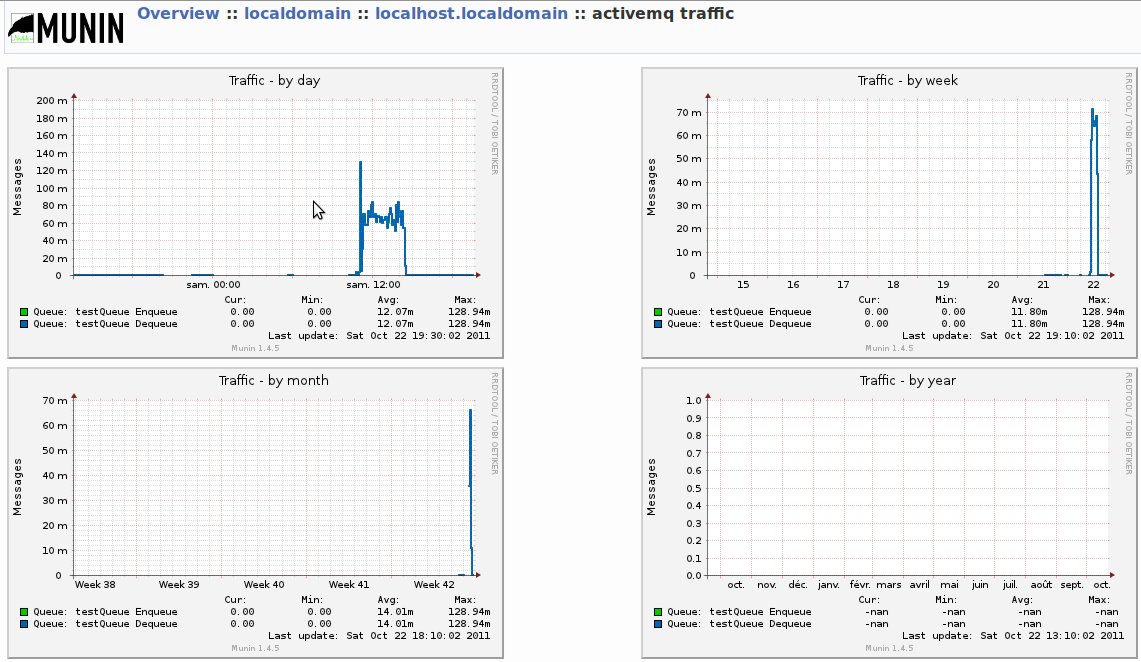
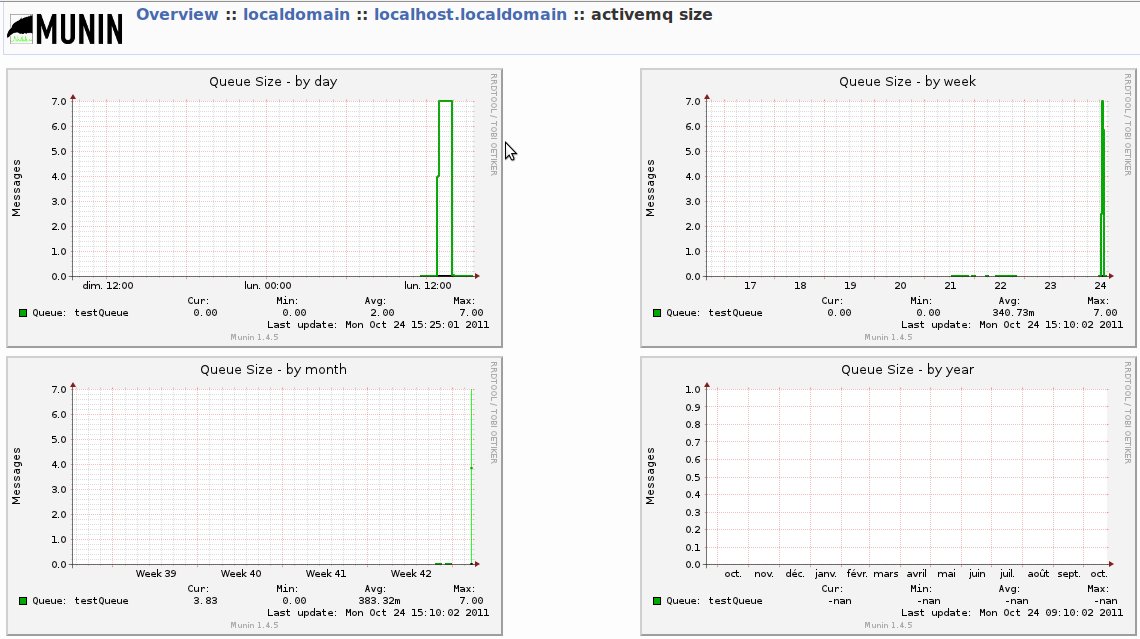
Munin screenshots
Queue size sample
Traffic sample